How to Set Up the Desktop Viewer for Your Camera
You can download the desktop app using the link below:
Download HiP2P Desktop Client
Important: Make sure you've already set up your camera on your mobile phone using the CamHiPro app before continuing with the desktop setup.
Step-by-Step Setup:
Install the Application.- Download and run the installer to complete the setup.
Login - When prompted for a password on first launch, simply leave the field blank and click OK.
Add Your Camera
Click the Add Camera icon (usually a "+" symbol)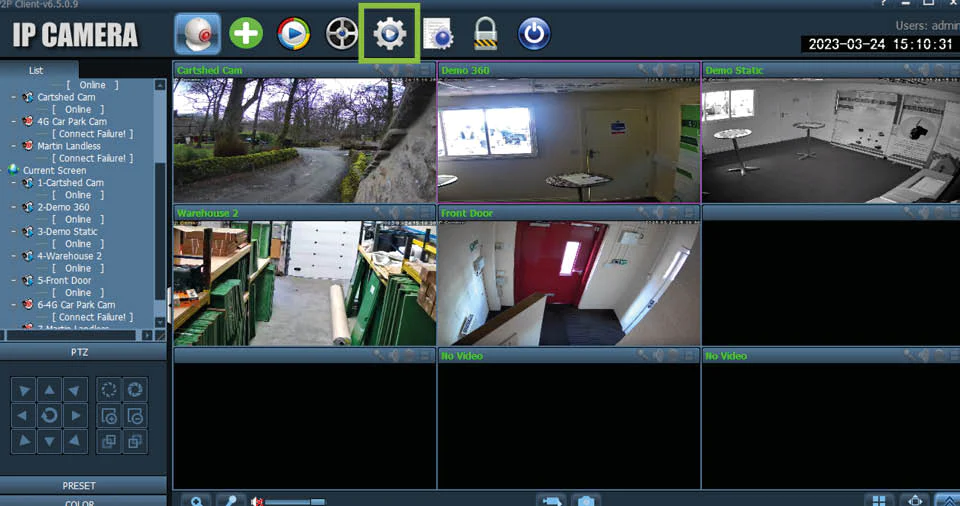
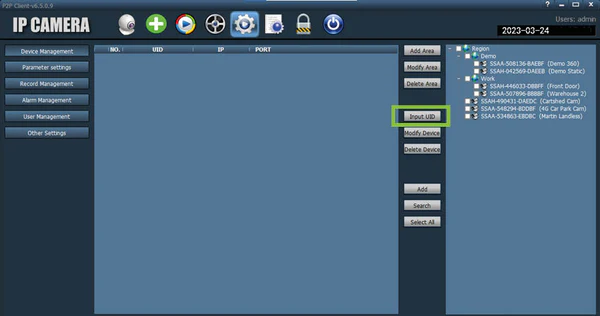
Select 'Input UID'
Choose the option to manually input the camera UID.Enter Camera Details
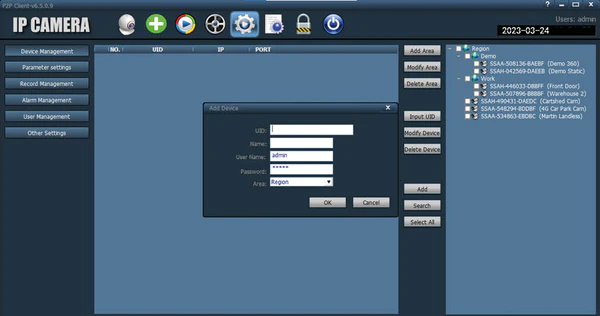
Enter the UID, camera name, and the password you used when setting it up on your phone.
Click OK to save.
View Your Camera
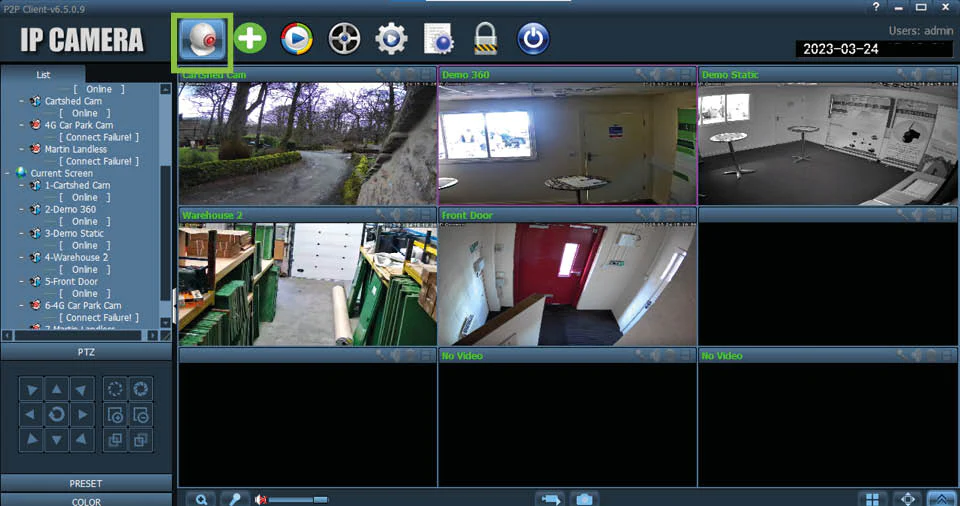
Click the webcam icon to switch to the live view screen.
 Connect the Camera (if needed)
If you don't see a live feed, try this:Right-click on your camera listed on the left-hand side
Select "Connect Camera" from the menu
Your live video should now load and be viewable through the desktop app.
Was this article helpful?
That’s Great!
Thank you for your feedback
Sorry! We couldn't be helpful
Thank you for your feedback
Feedback sent
We appreciate your effort and will try to fix the article